Look it up.
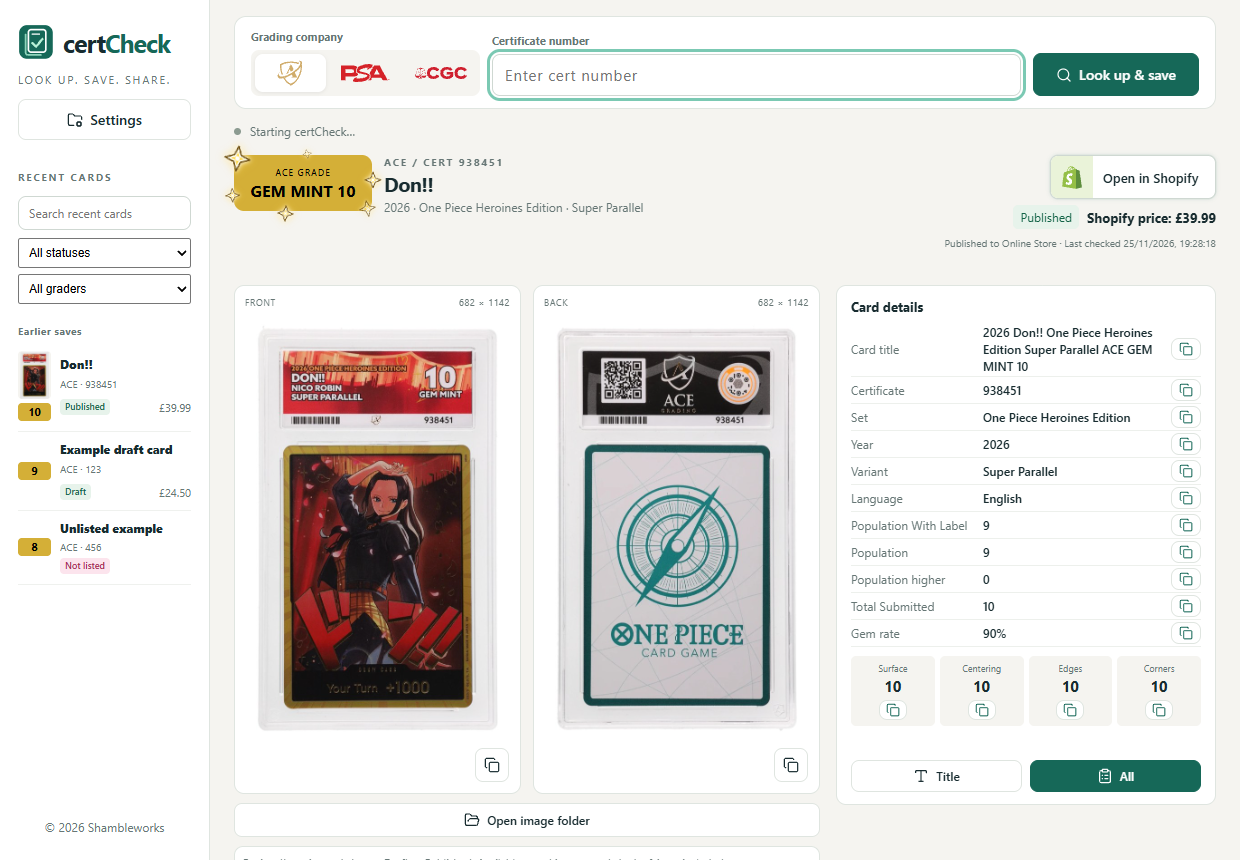
Choose ACE, PSA or CGC and enter the certificate number. Retrieve the card details and available images from the grader.
 certCheckGet certCheck
Your graded cards. Their details.
Your next listing. All in one place.
Look up a certificate, save the card, and turn the details into a Shopify listing. Less copying. More collecting.
LESS ADMIN. MORE CARDS.
Start with what’s already on the slab. certCheck brings the information together, so you don’t have to retype it.
Choose ACE, PSA or CGC and enter the certificate number. Retrieve the card details and available images from the grader.
Save the card and images to your own library. Reopen recent cards, inspect the scans and copy the details you need.
Review the title, images, tags and price. Create a Shopify draft, or publish to your selected sales channels.
YOUR CARD. YOUR CALL.
The details do the travelling. You make the decisions. Review each card before it becomes a listing.
Temporal Forces · 203/162
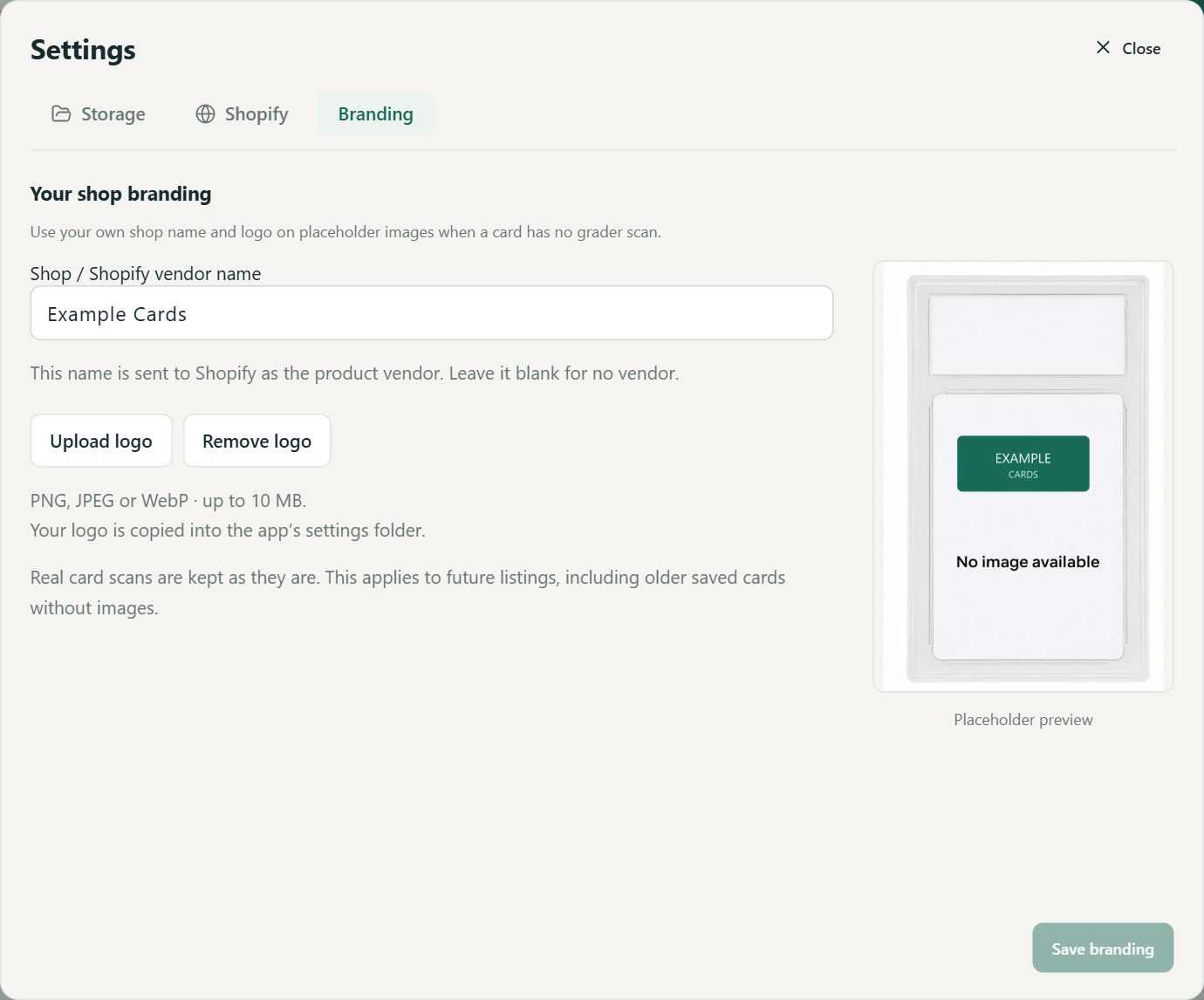
YOUR SHOP, ON EVERY PLACEHOLDER.
Add your logo and shop name in Settings → Branding. Cards without grader images get your own clearly labelled placeholder, and Shopify listings use your shop’s vendor name.
LATEST RELEASE · VERSION 1.5.1
Version 1.5.1 includes the update checker, smoother dialogs and all the v1.5.0 improvements below. Full release notes are also available in Settings → About.
Shopify status and prices refresh automatically on startup, every five minutes and after listing. Prices appear in Recent cards and on the selected card. Failed checks keep the last known information.
Clear numbered stages, catalogue progress and elapsed time show what’s happening. Faster cached game checks keep identification from holding up card saving for more than ten seconds.
Filter by grader or listing status, spot duplicate certificates and remember game choices. Missing scans use your branded slab placeholder, including in Recent cards.
Export and restore your cards, images and preferences. New cards merge into your library without replacing existing cards or your current Shopify connection.
Success toasts dismiss after two seconds; errors after five. A separate error tone and saved mute option put you in control. Save buttons activate only when something changes.
Unsaved settings prompt you to save, discard or keep editing. Versioned release notes make it easy to see what changed.
Read the v1.5.1 release notes →
NEW IN V1.5.1 · INCLUDED IN YOUR DOWNLOAD
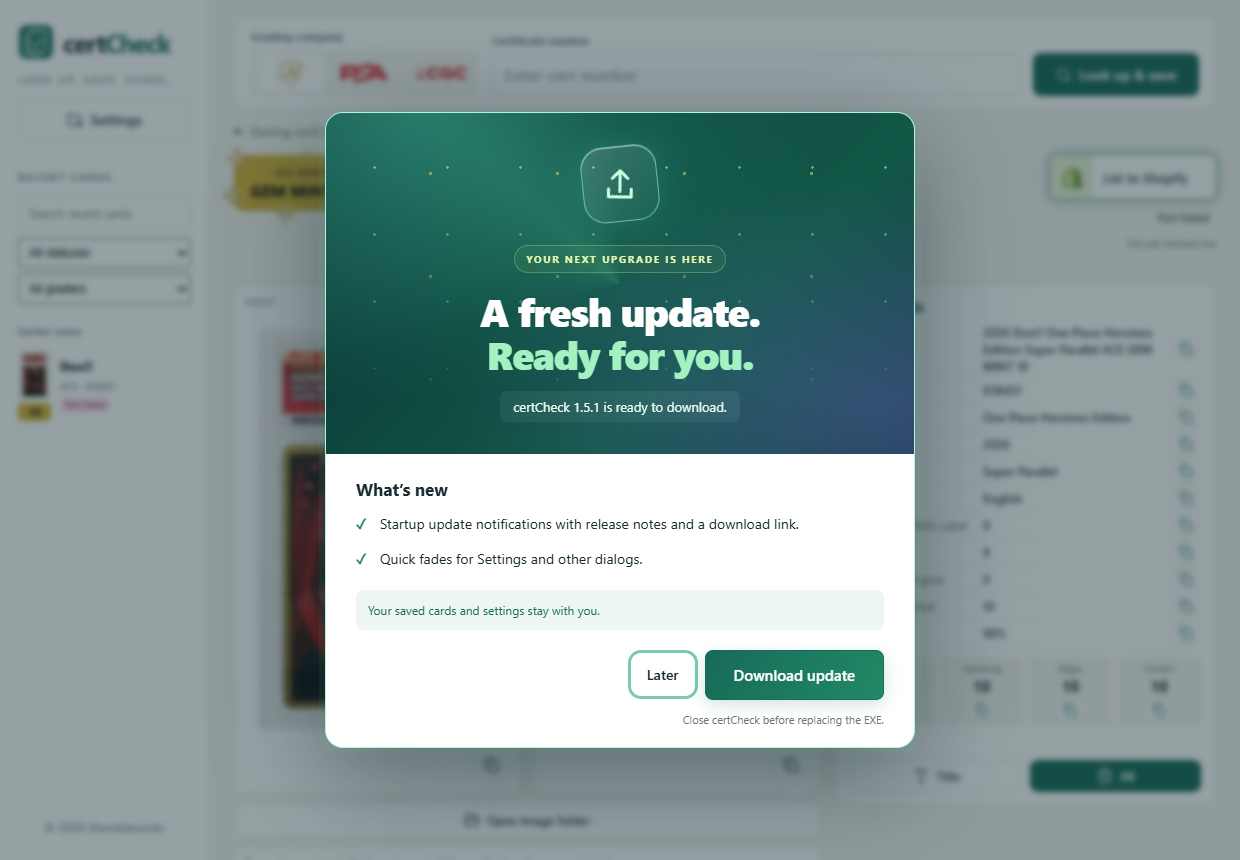
Get a prominent startup notification when a newer version is available, with release notes and a download link. Settings and other dialogs now fade in and out quickly. Downloads remain your choice.
A DESKTOP APP THAT KEEPS THINGS SIMPLE.
Card details and images live in your chosen folder. Revisit saved cards without repeating the certificate lookup.
Internet access powers new lookups, game identification and Shopify publishing. Your saved library remains local.
Replacing the EXE on the same Windows account keeps your settings and library. Leave your card folders in place.
A FEW THINGS TO KNOW
certCheck supports certificate lookups from ACE, PSA and CGC. Available information and images depend on the grader’s certificate page.
No. Game identification checks grader information and card catalogues across multiple TCGs, including One Piece, Yu-Gi-Oh! and Disney Lorcana. If a game cannot be identified, choose it when reviewing the listing. Remember that choice for the card, or optionally for future cards from the same set.
No. You can look up cards and save them locally without Shopify. To create shop listings, connect your Shopify store in Settings using your shop’s app credentials.
You can review a card and choose Draft or Published. An optional setting can create a draft after a new lookup. Published listings use the default sales channels you have selected.
Yes. In Settings → Branding, upload a PNG, JPEG or WebP logo and set your shop/vendor name. The logo appears on clearly labelled placeholders for cards without scans. Genuine card images stay unchanged.
Yes. Export cards, images, branding, preferences and listing history to a backup ZIP. Restore merges new cards and keeps your current Shopify connection. Shopify credentials are excluded from backups.
ACE may ask you to complete verification in a browser window before a lookup can continue. certCheck does not bypass that verification.
Close certCheck and replace the old EXE with the new version. Keep your card library folder. On the same PC and Windows account, the app reuses your saved settings and Shopify connection.
NEXT UP: YOUR NEXT CARD.
Version 1.5.1 · 19.0 MB · Windows EXE
Open the app, choose your grader, and enter a certificate number.